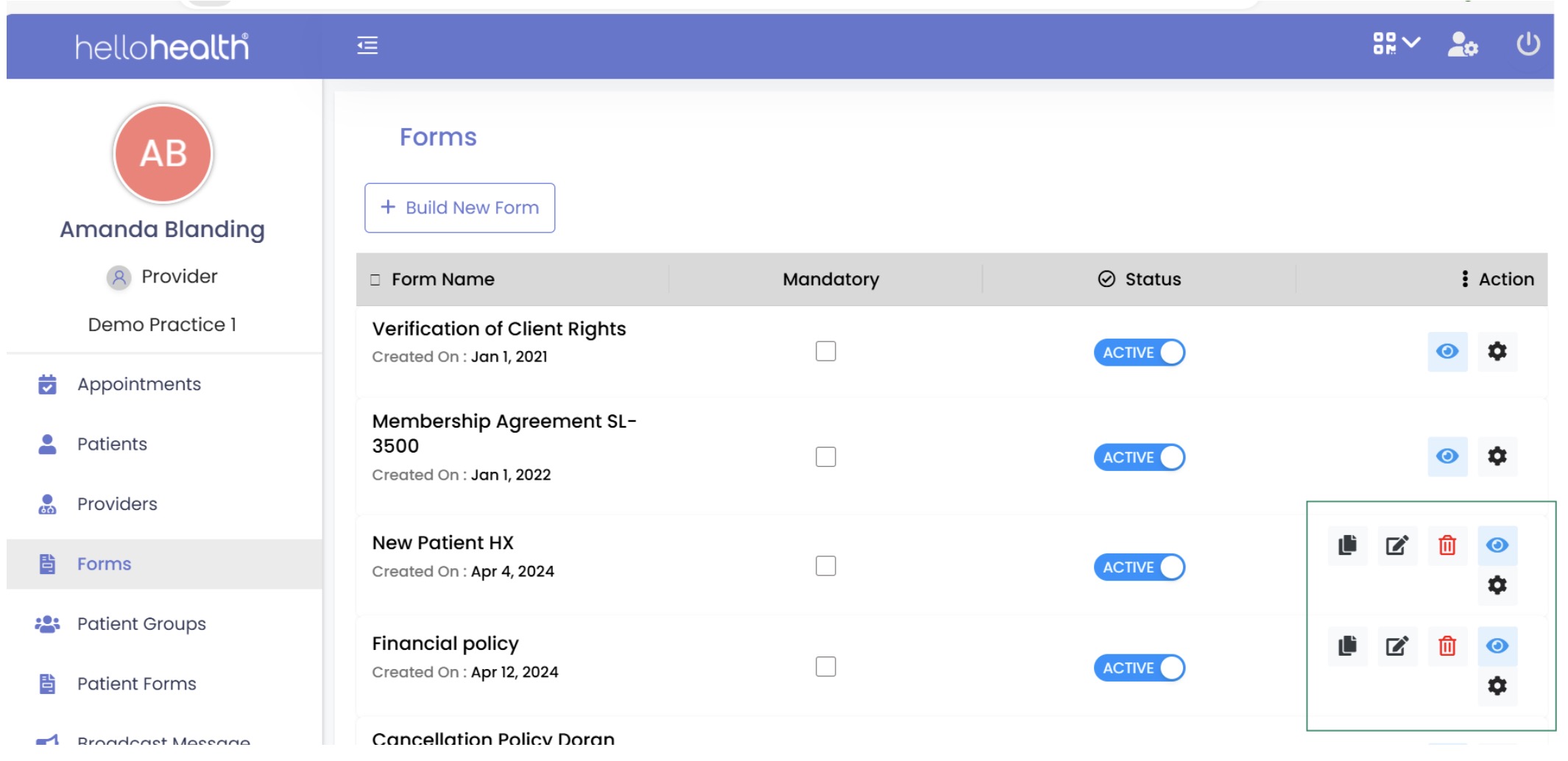
Forms
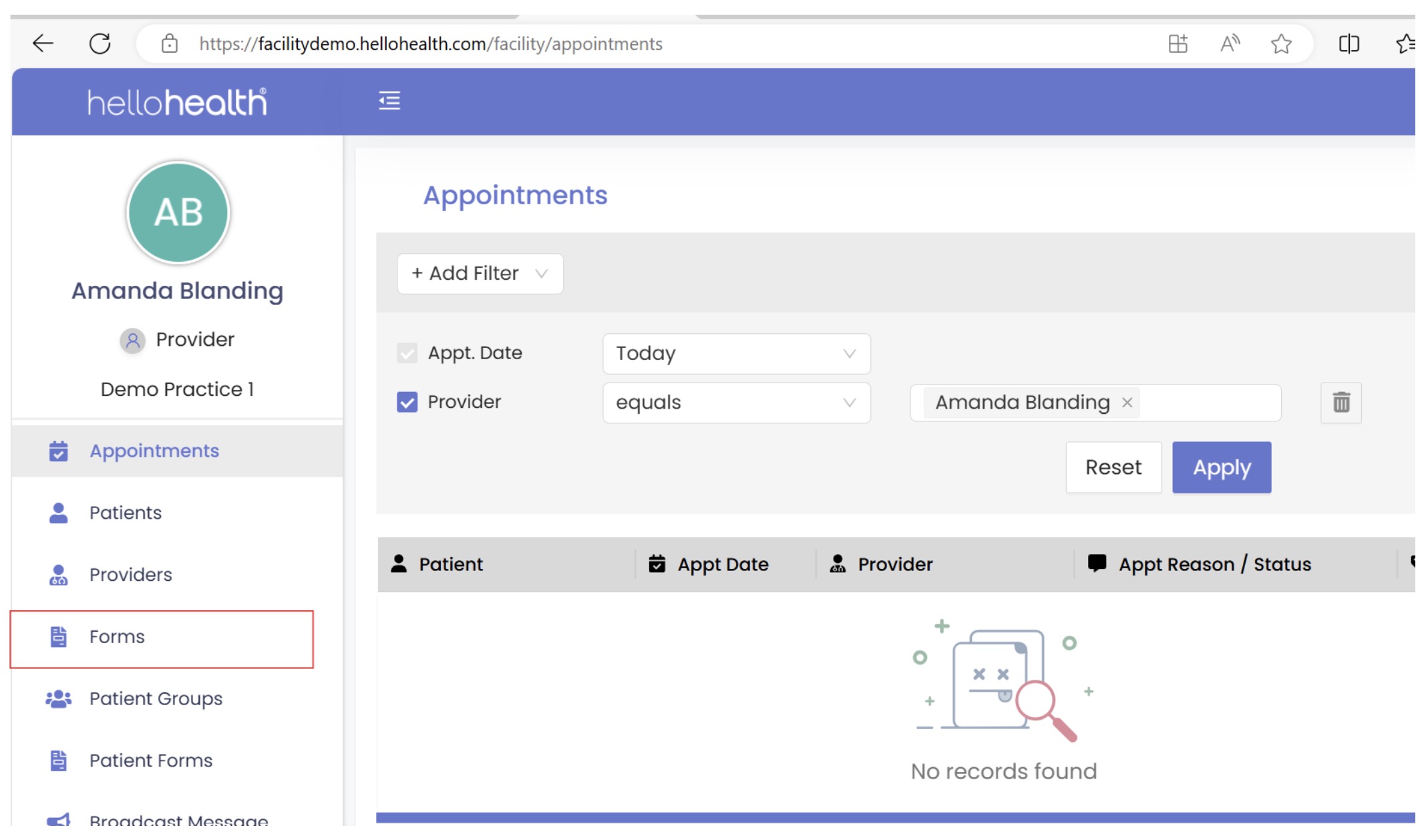
- The Forms tab can be found on the left-hand menu of the facility portal:
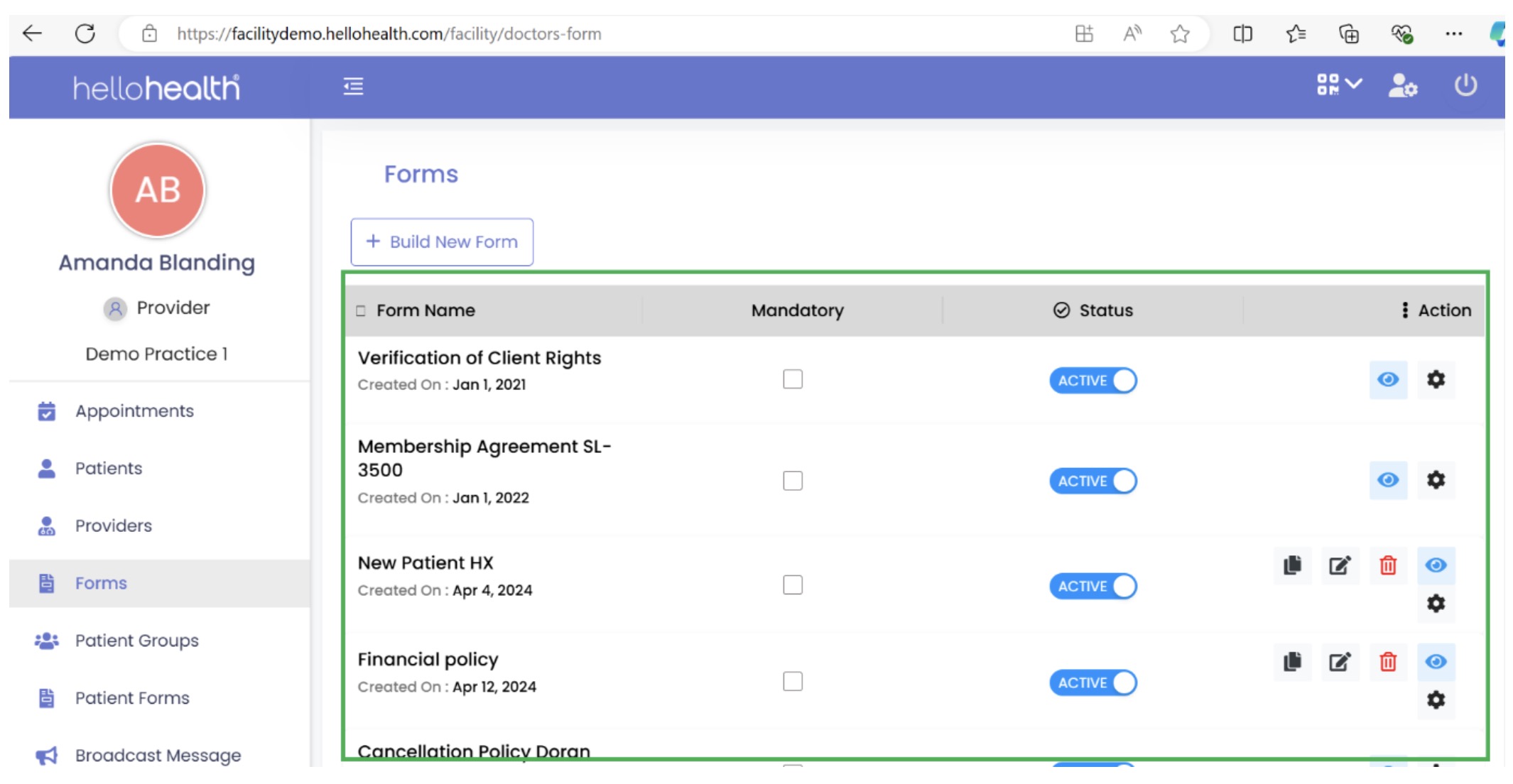
- Providers can submit their forms by emailing the support team. Our backend team will create them; once completed, all forms will be available here:
How to build new forms:
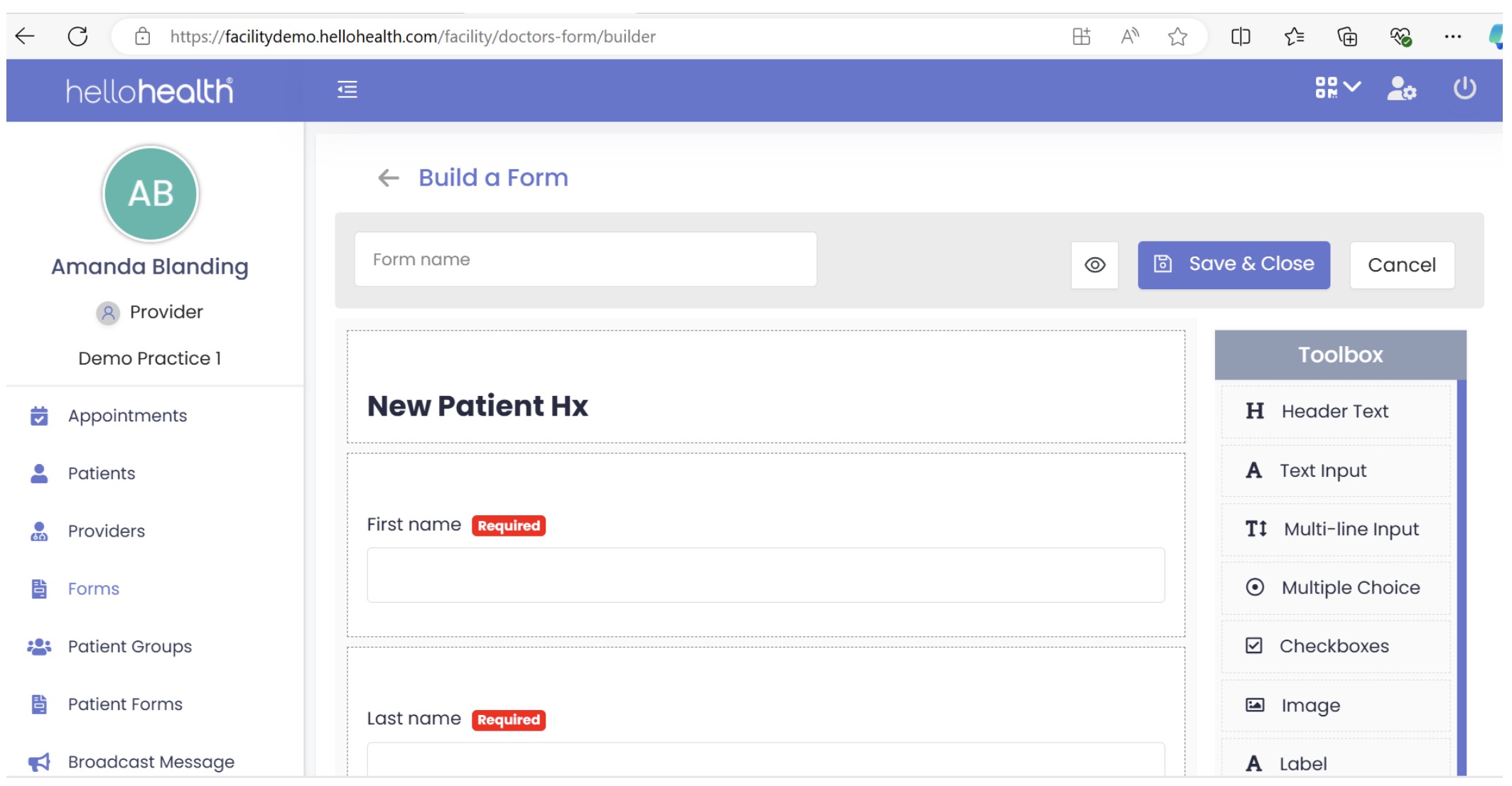
- Providers have an option to create new non-complex forms. Click Build New Form:
- Multiple options are available in the toolbox to help you create new forms.
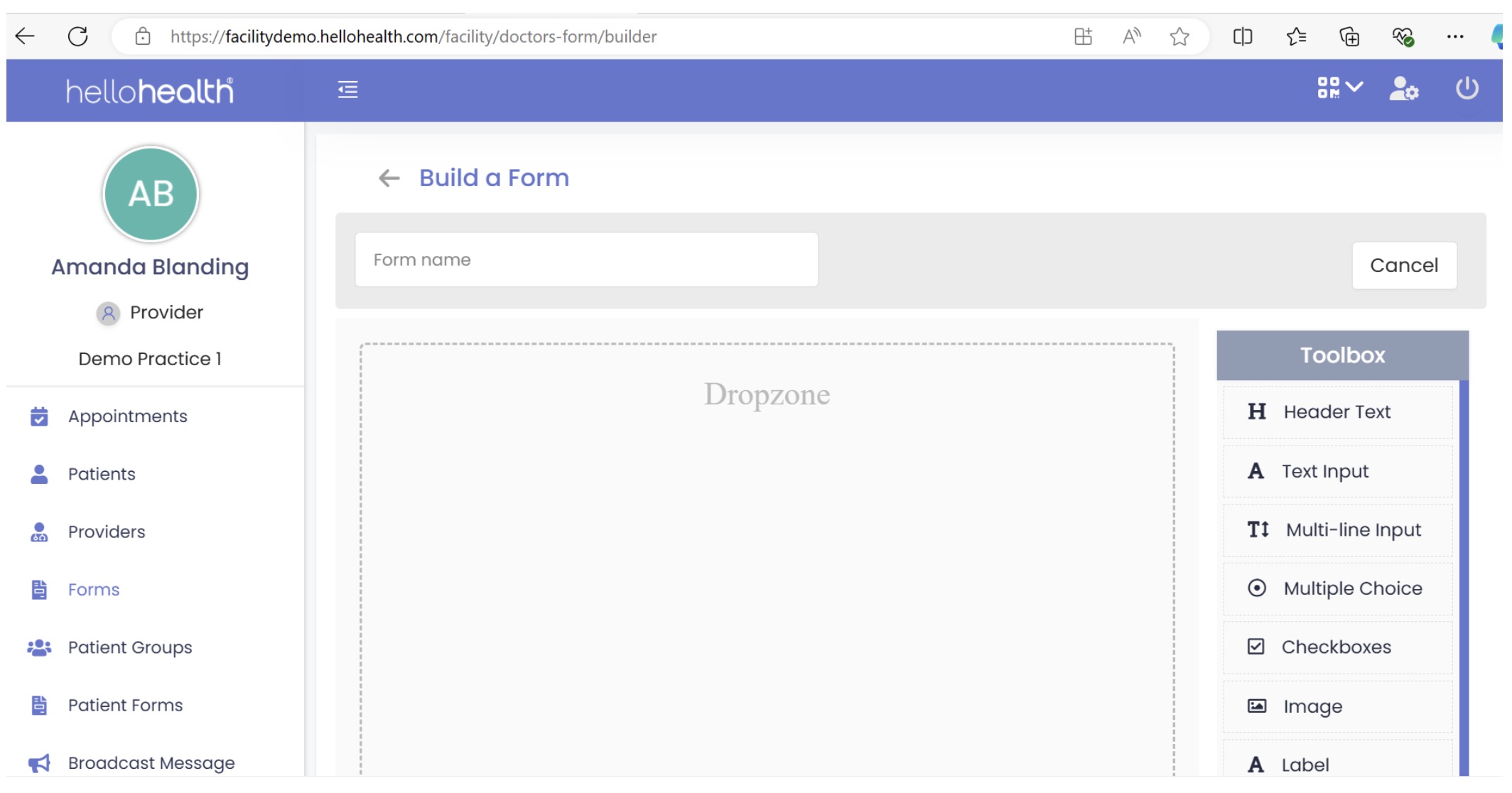
- After creating the form, on the right side, you will see the option to save and close:
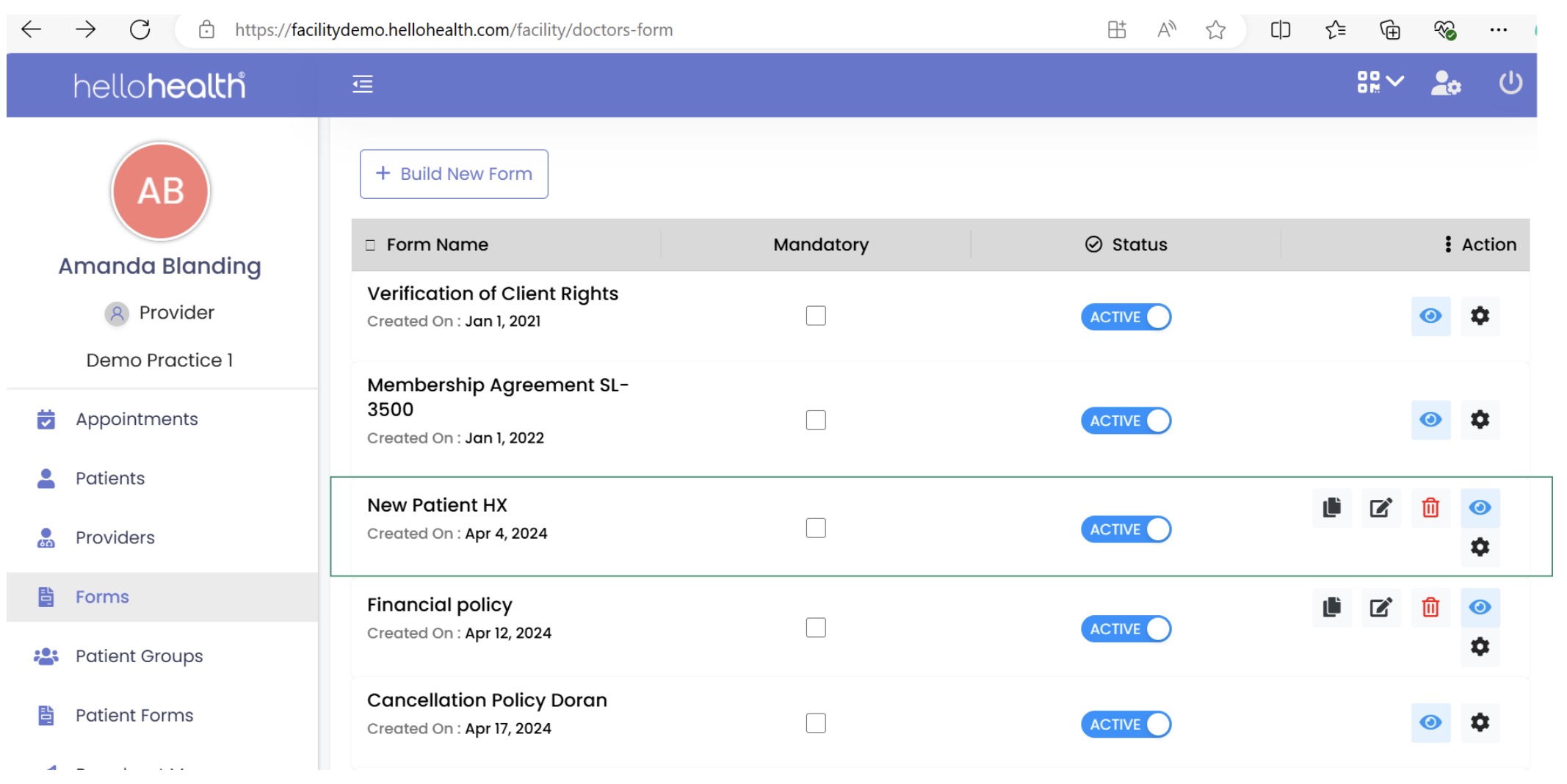
- Once saved, this form will show in the form section:
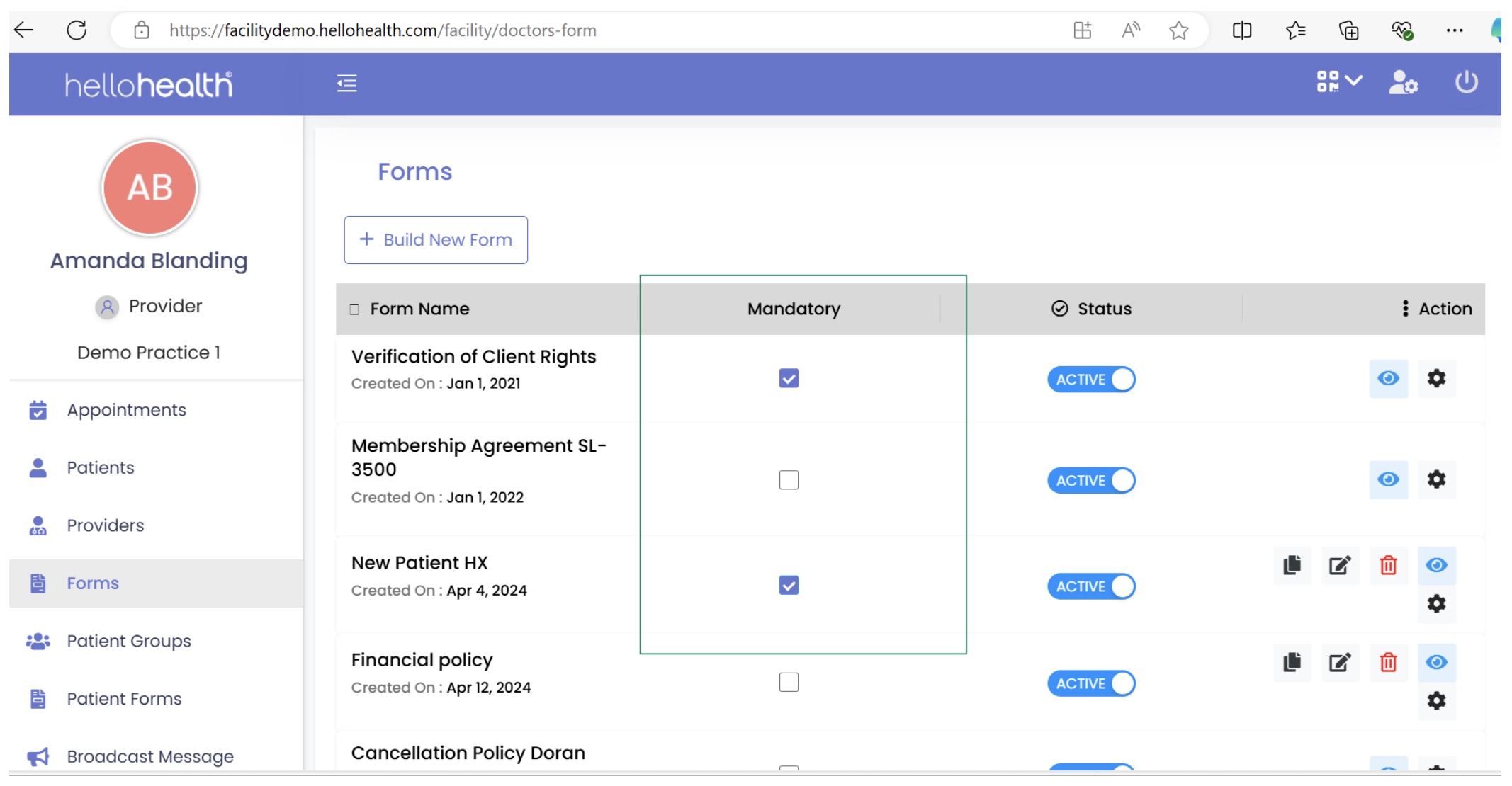
- Mandatory: Once the provider clicks the check box, patients must fill out that form before check-in. This can be seen in the highlighted box:
- Status: If the provider has the status in active mode, then patients will receive that form to fill out; if the status is not active, patients will not receive it. You can see below that all forms are in active mode:
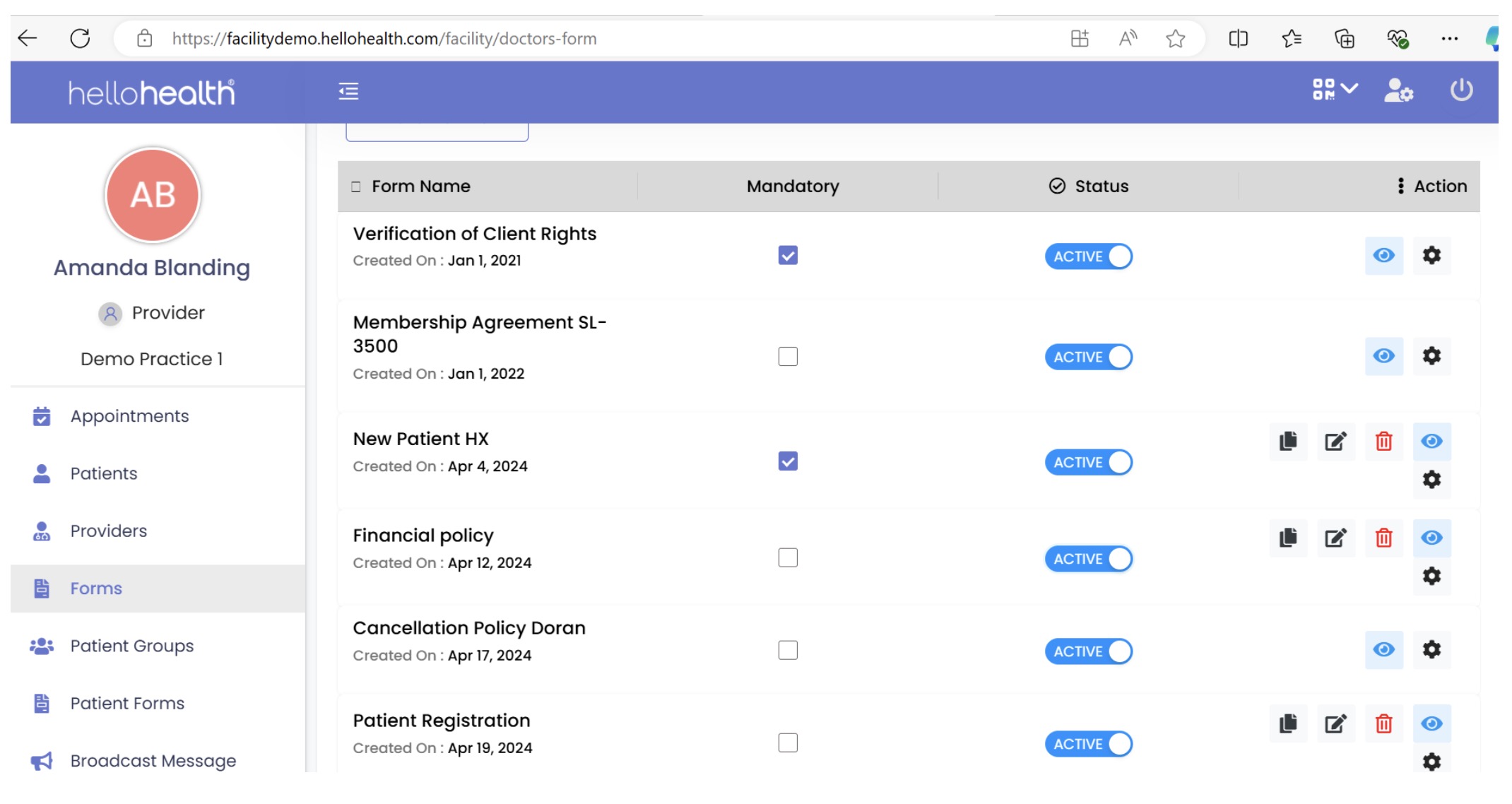
- In the next example, a few forms are showing as inactive. Patients will not receive these forms.
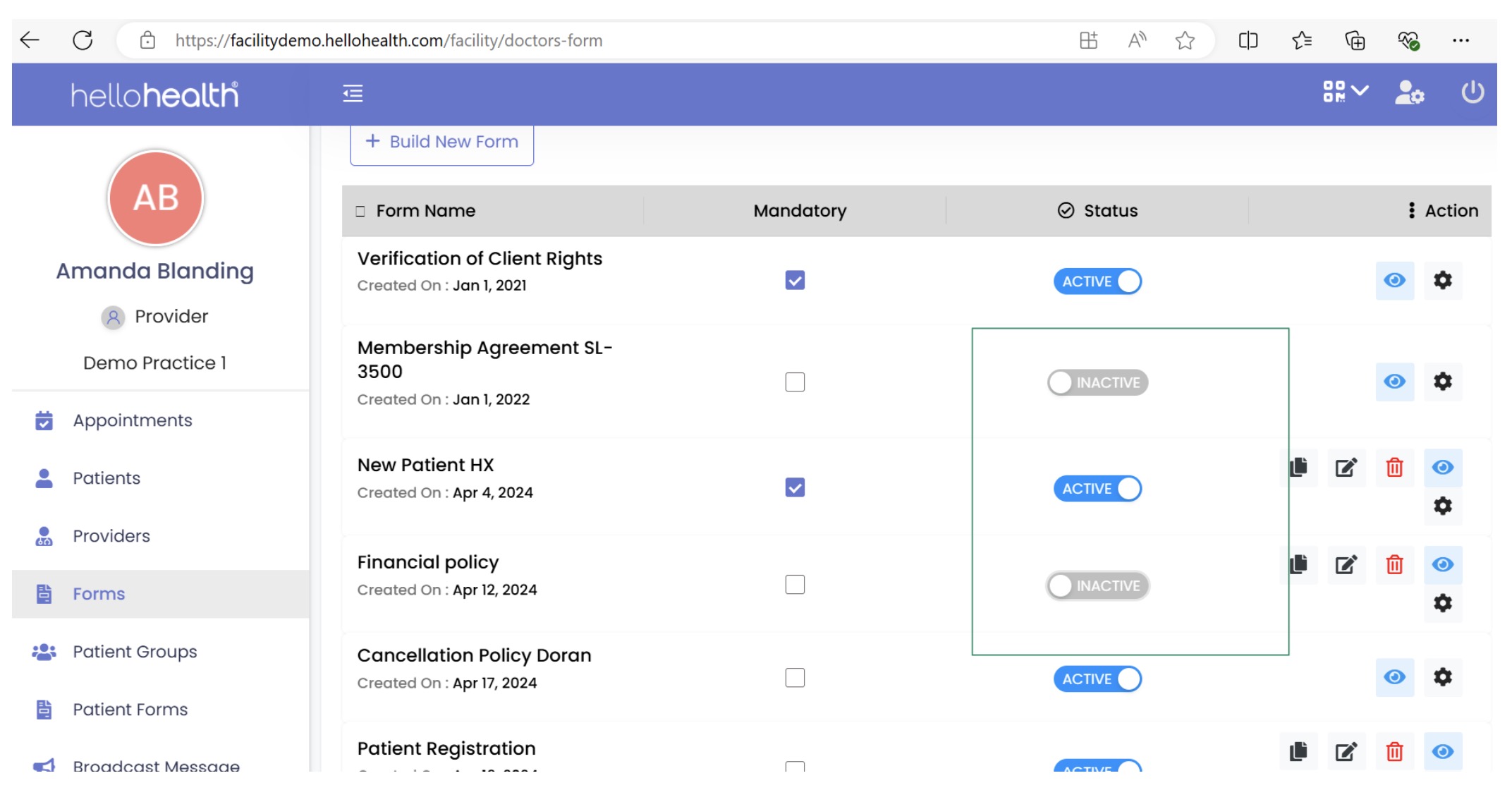
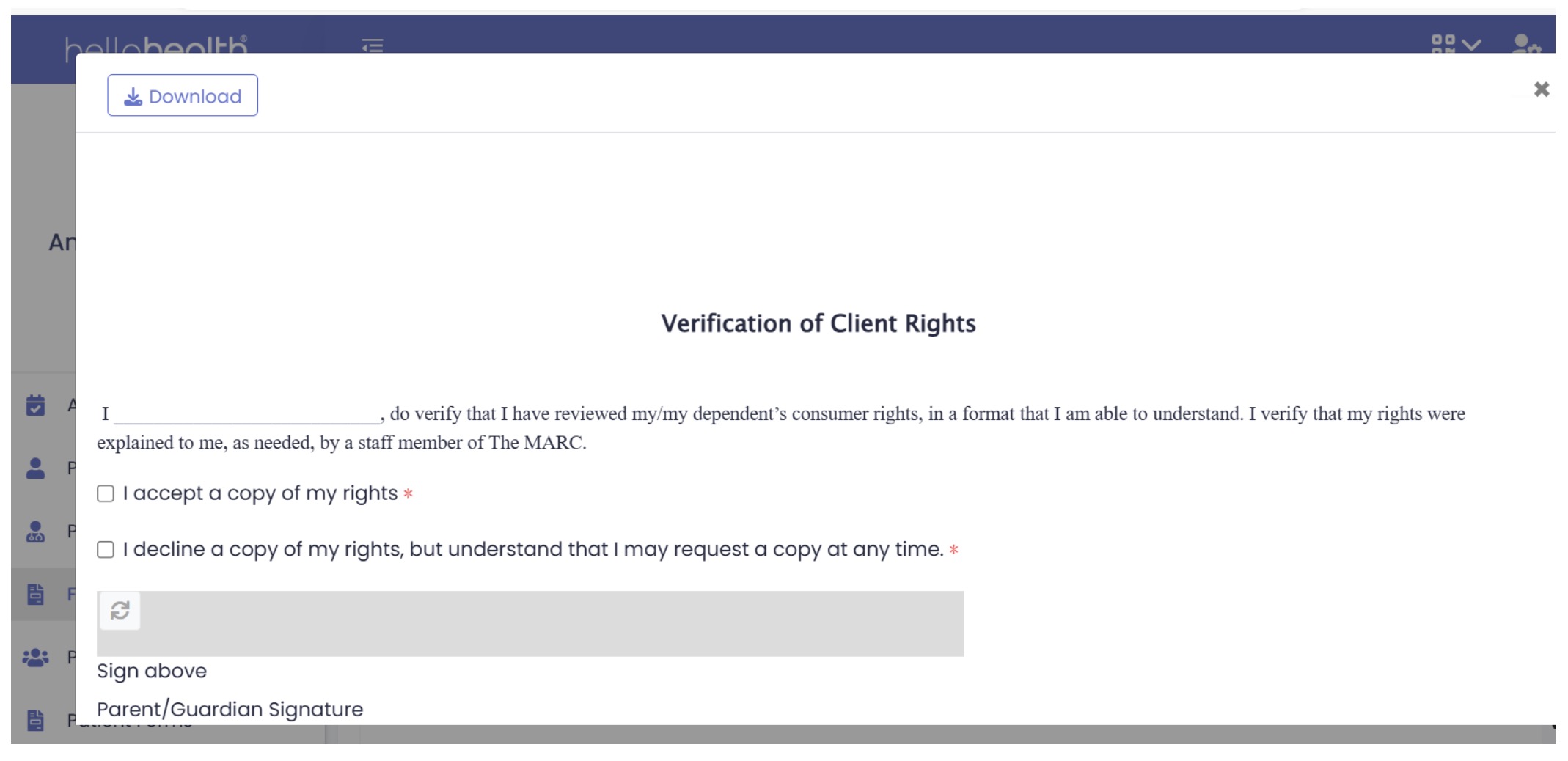
- Action: Click the eye icon to see the form:
- Action: Click the settings option to enter a specific provider name and appointment type.
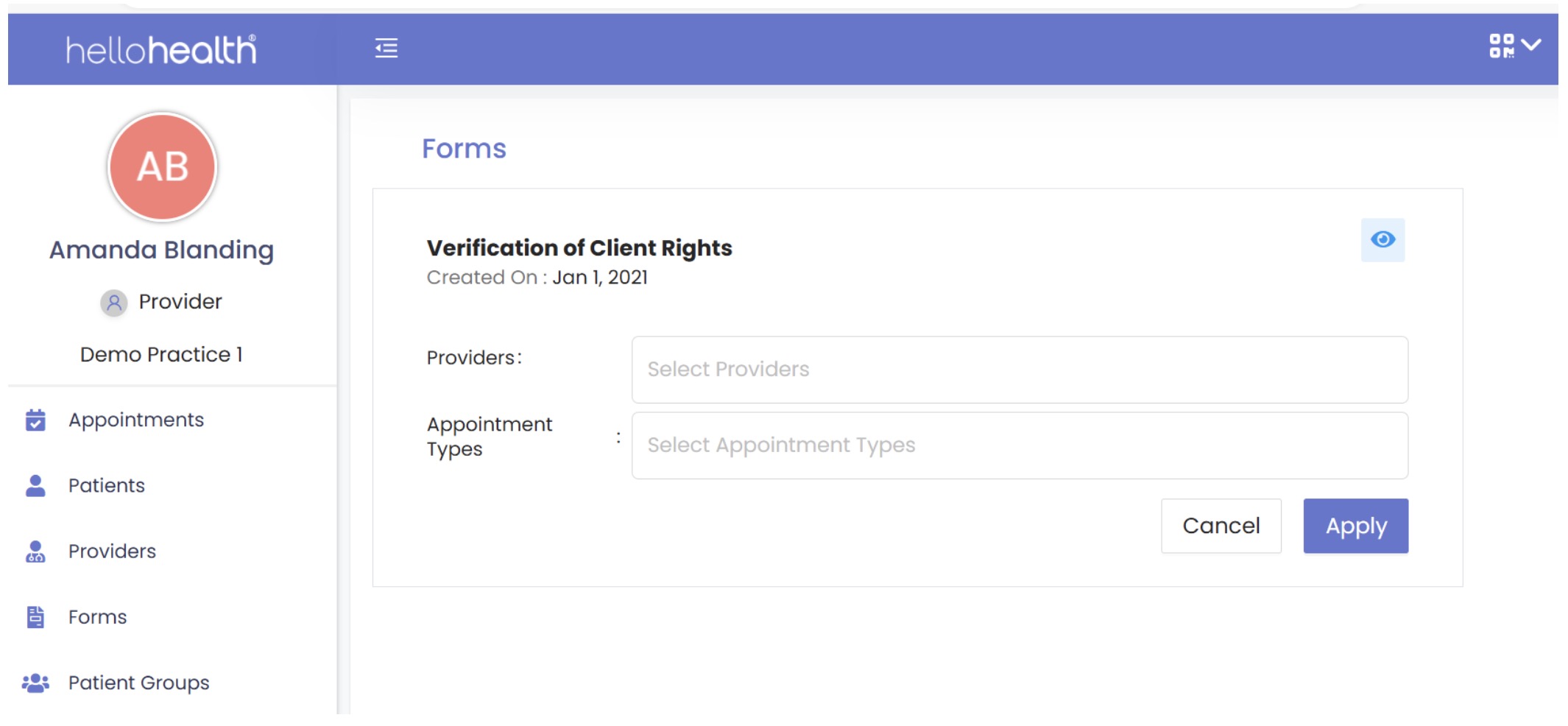
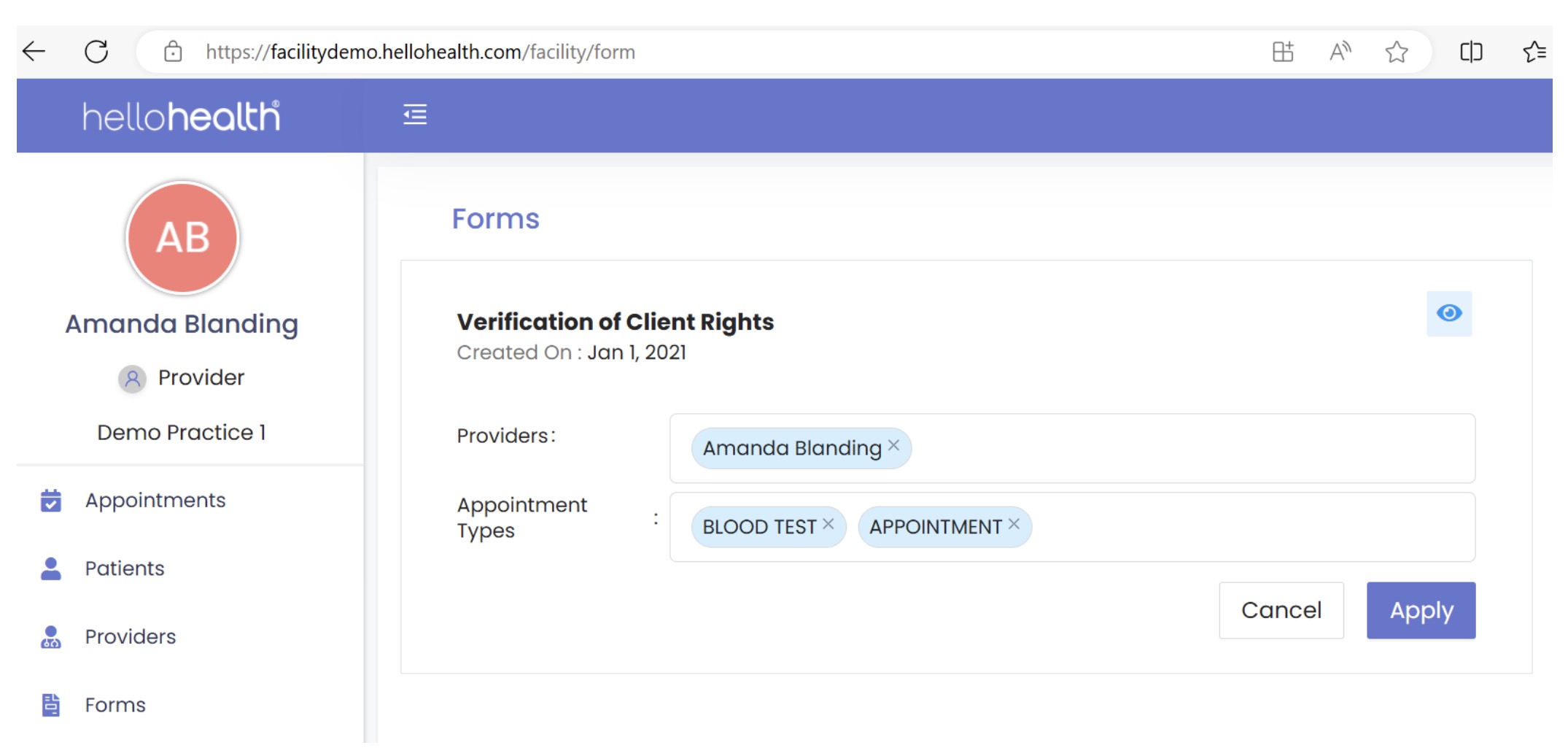
- After filling in the details, click “Apply” to assign the form to a provider.
- Action: You can see in the screenshot below that there are multiple options to customize the forms according to your preference.