
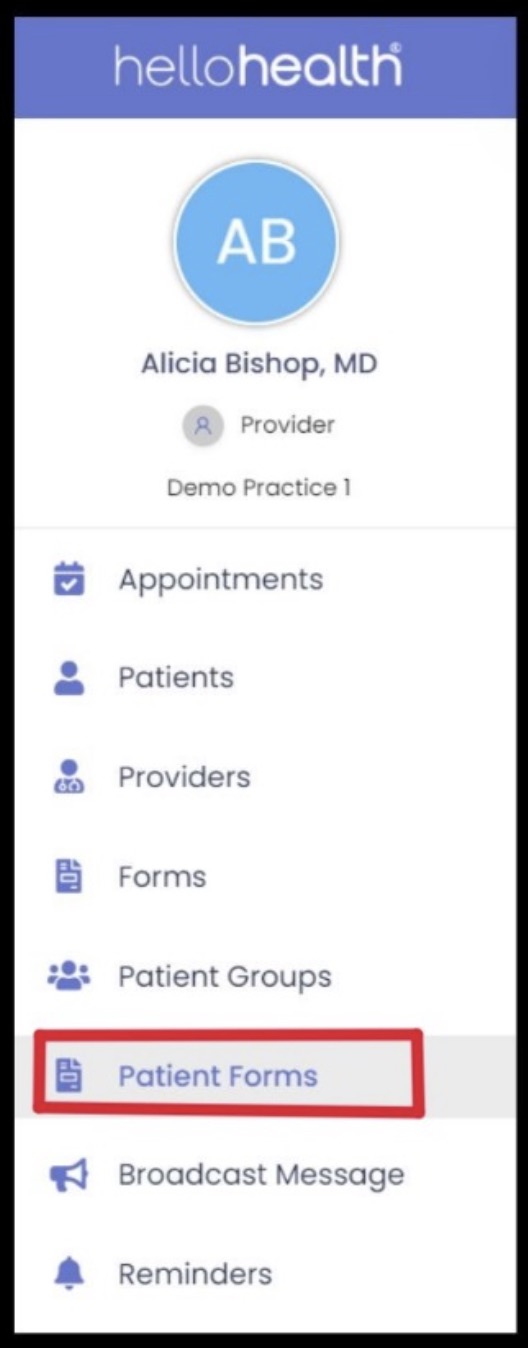
Patient Forms
The ‘Patient Form’ tab contains a list of forms completed by patients via appointments or messages.
Here, you can view, download, and lock or unlock them.
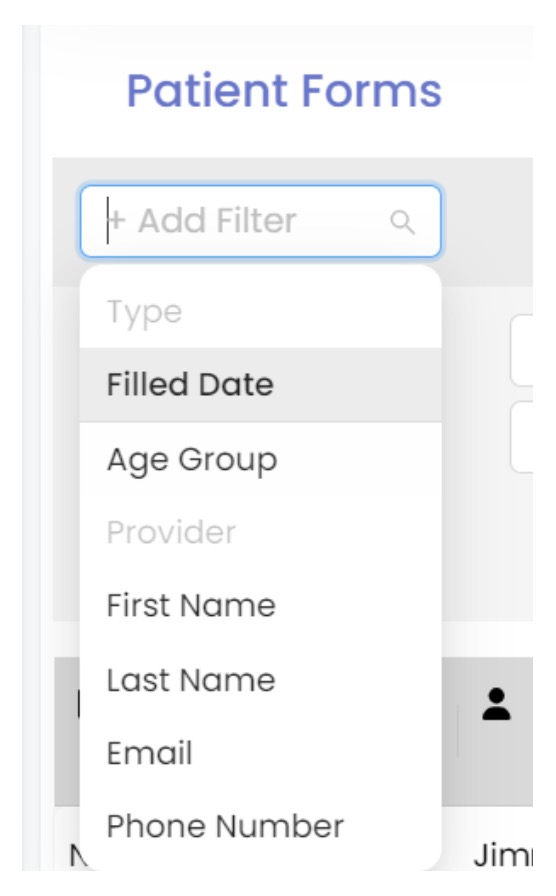
- Within this tab, providers have various filters that can be used to minimize the search criteria. Facility users can filter by the date the form was filled out, age group, first name, last name, email address, or phone number.
- The patient form type filter is mandatory; however, users can unselect the provider filter. Type displays two options: Messages and Appointments. Users can filter out the modes from which they have received the filled-in forms, messages, or appointments.
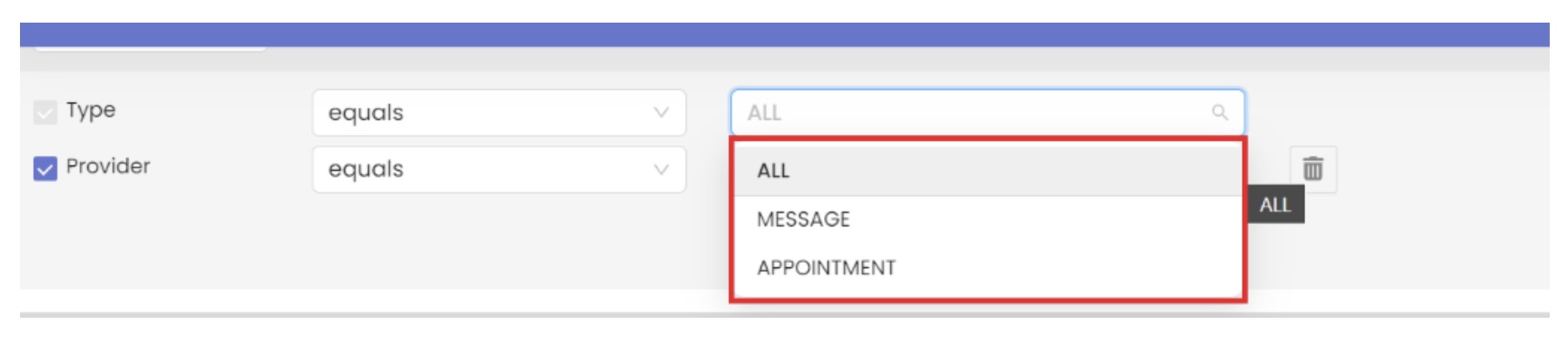
- Additionally, users can select a filter by the provider where they’ll be able to see forms received for the provider’s appointment. The more filters are applied, the more search criteria will be narrowed.
- As mentioned earlier, users will have access to view and download the filled-in form.
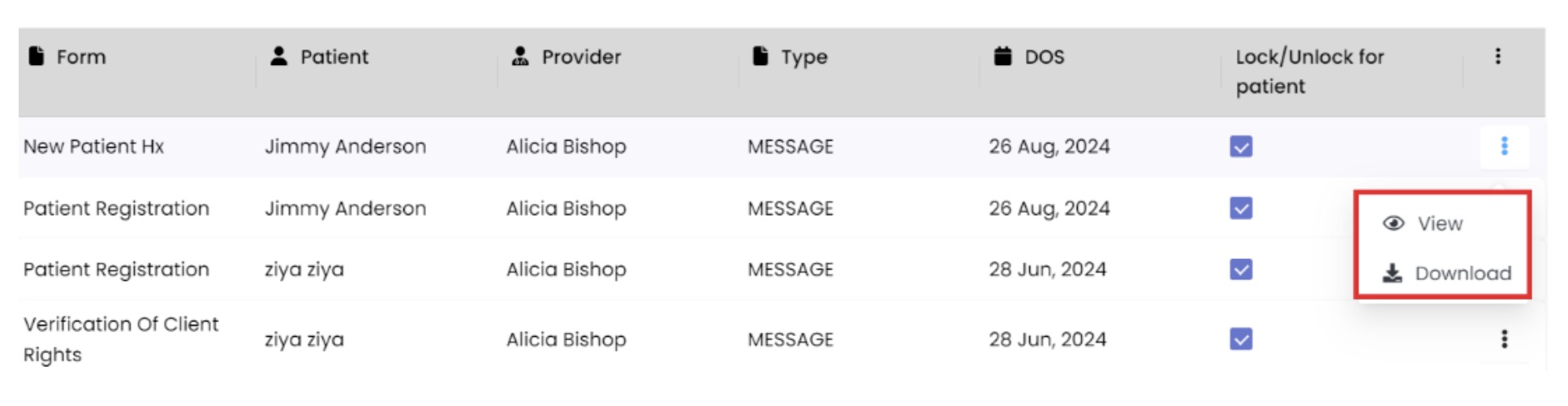
- If a form is unlocked, patients can edit it as often as needed, even after completing it.
- If it is locked, they won’t be able to make any changes after submission.
- Only users with facility-side access in HelloHealth can lock or unlock patient forms.
- To lock/unlock the forms, click the check mark on the bracket left of the form; no check mark represents the form being unlocked. The user will receive a pop-up while locking and unlocking the form; after clicking yes on it as a confirmation, the form status will be changed.
