
Upload Documents
The ‘Documents’ section shows you all the documents you have uploaded. Forms shared by the practice you filled out before your appointments will also appear here.
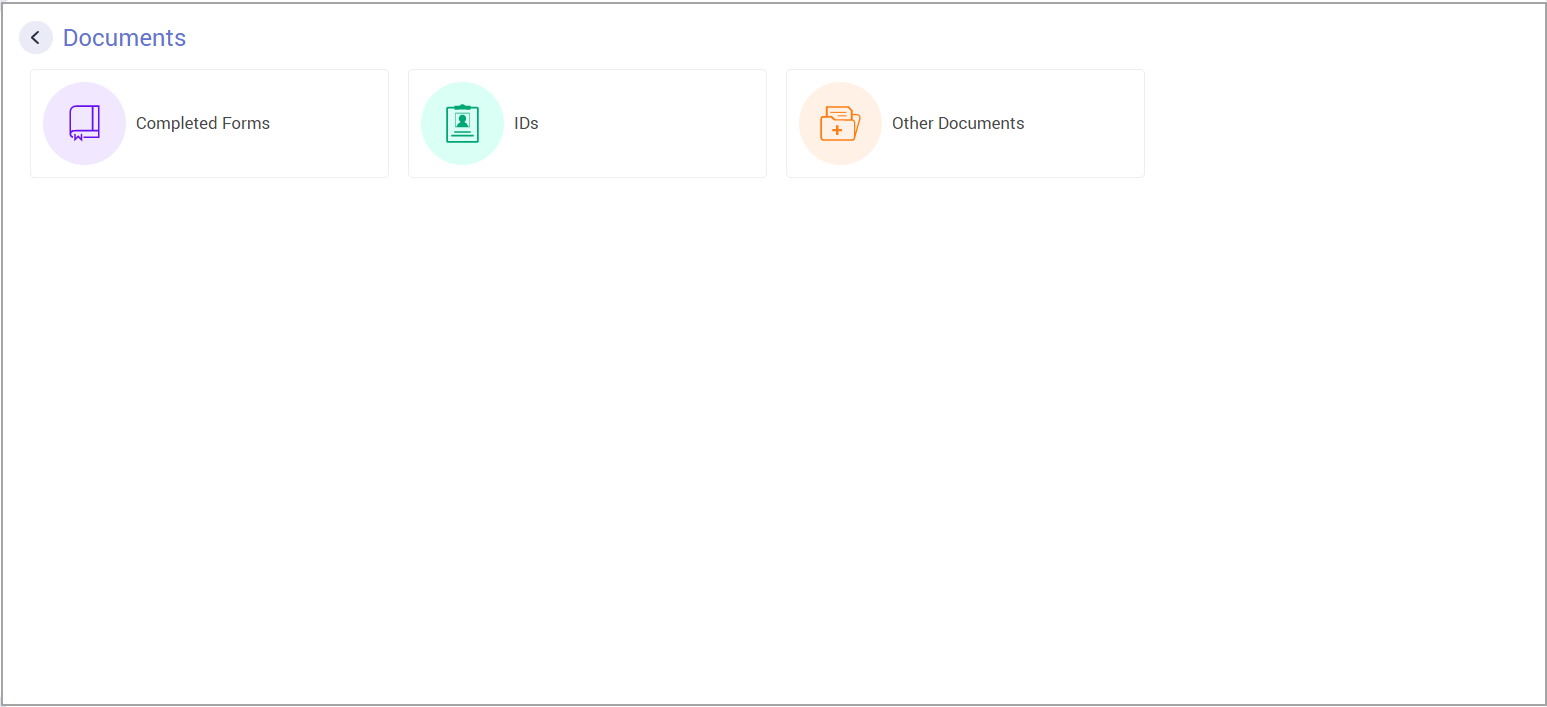
Completed Forms: View, Print, and Download PDF options are available.
IDs: Download, Edit, and Delete options (max. file size 20 MB).
Other Documents: Download, Edit, and Delete options (max. file size 20 MB).
How to Upload a Document
Click on ‘IDs’ or ‘Other Documents’, whichever is relevant for your document, and click on ‘Add New’ provided on the top left.

Provide a name and description for your document and select the type from the drop-down provided. Browse and upload the file using the ‘Browse File’ button.
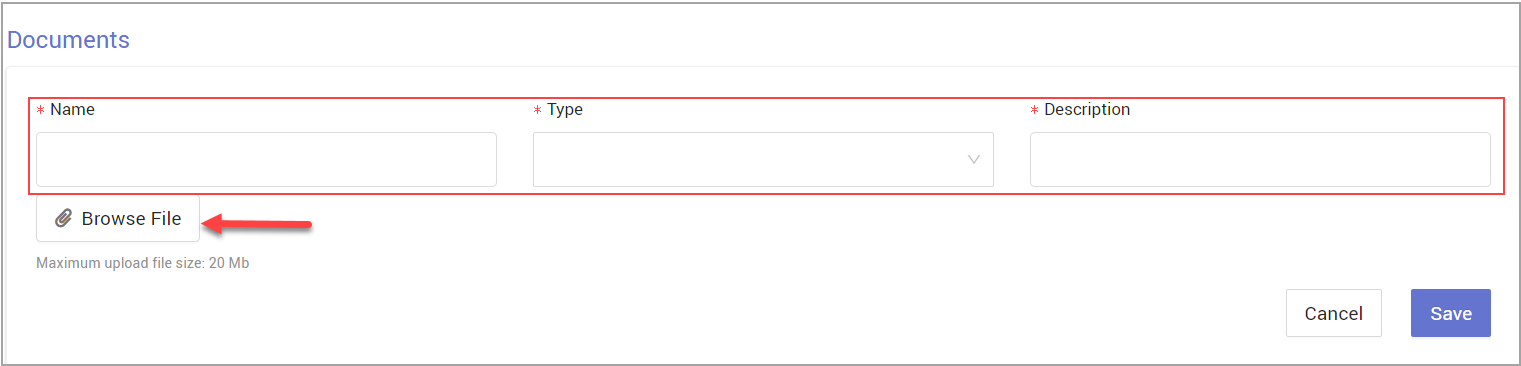
Finally click on ‘Save’. The document will be saved in the selected section.
To view/edit details, click on the ellipsis (three dot menu) on the far right of the document in the listing.